Interface Overview
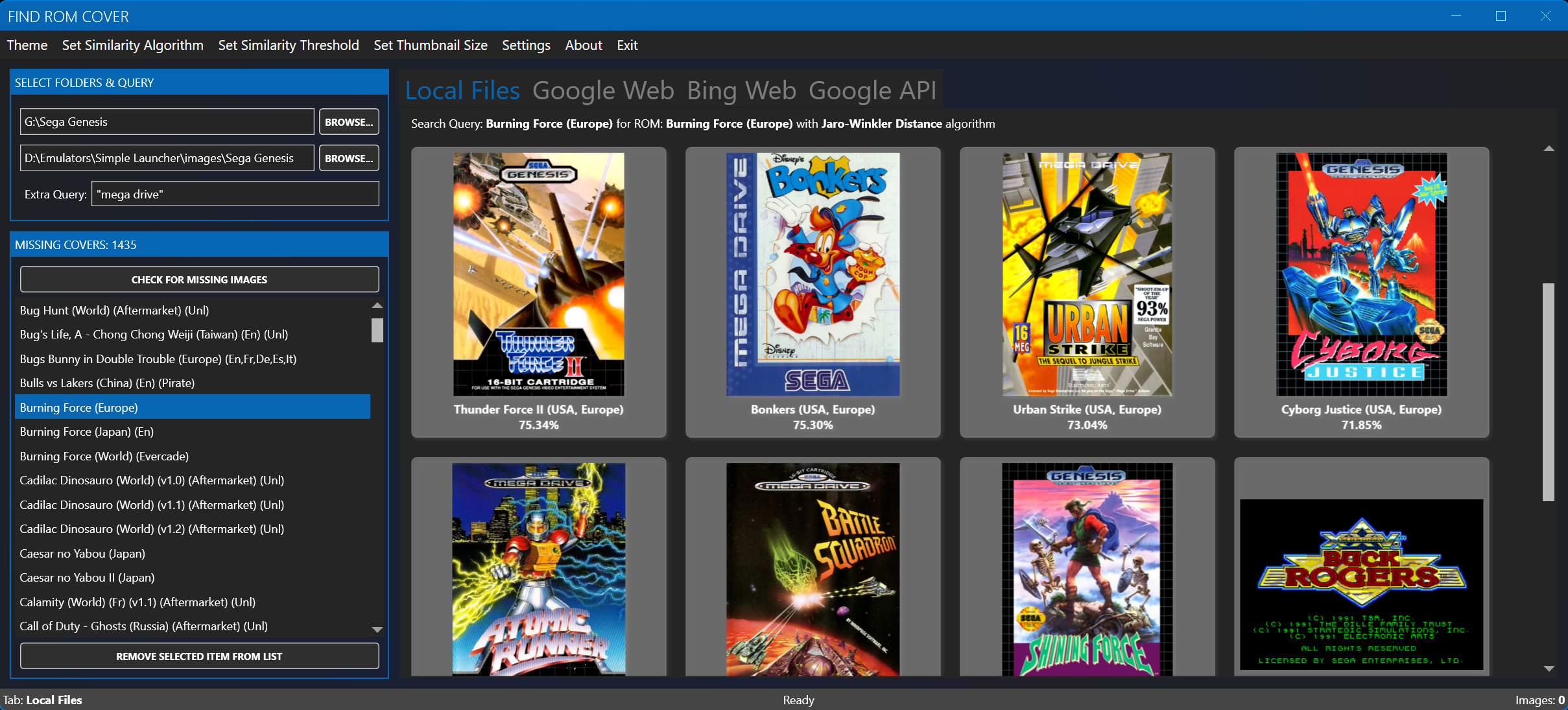
The FindRomCover main window is organized around four areas: the menu bar, the folder and query panel, the missing covers list, and the search tabs.
Menu bar
| Menu | Items | Description |
|---|---|---|
| Theme | Light, Dark | Switch the base theme |
| Theme > Accent Colors | 20+ colors | Red, Green, Blue, Purple, Orange, Lime, Emerald, Teal, Cyan, Cobalt, Indigo, Violet, Pink, Magenta, Crimson, Amber, Yellow, Brown, Olive, Steel, Mauve, Taupe, Sienna |
| Set Similarity Algorithm | Jaccard Similarity, Jaro-Winkler Distance, Levenshtein Distance | Algorithm used to match local image filenames to ROMs |
| Set Similarity Threshold | 10% – 90% | Minimum similarity required to list a local image |
| Set Thumbnail Size | 100 – 500 pixels | Preview size for Google API results |
| Settings > API Settings... | — | Google Custom Search API key |
| Settings > AI Settings... | — | AI provider, model, limits, and behavior |
| Settings > Edit Supported Extensions... | — | Manage which ROM file extensions are scanned |
| Settings > Show/Hide Log Window | — | Toggle the live log viewer |
| Settings > Use MAME Descriptions | — | Use MAME descriptions instead of cleaned filenames for searches |
| About | Donate, About, Exit | Support links and application information |
Folder and query panel
| Control | Purpose |
|---|---|
| ROM Folder | Root folder of your ROM collection; scanned for supported extensions |
| Image Folder | Folder that holds (and receives) cover images |
| Extra Query | Extra words appended to the search query, for example box art or front cover |
| Check for Missing Images | Re-scans both folders and rebuilds the missing list (also F5) |
When both folders are valid, the scan starts automatically. The status bar shows how many ROM files were found and how many are missing covers.
Missing covers list
The list on the left shows every ROM without a cover. Selecting an entry:
- triggers a search with the currently selected tab;
- copies the ROM filename to the clipboard;
- updates the search query (and the MAME description, if enabled).
Right-click context menu:
| Item | Action |
|---|---|
| Remove Item from the list | Hides the entry without touching any files |
| Copy FileName | Copies the ROM filename to the clipboard |
| Delete corresponding ROM or ISO | Permanently deletes the ROM file from disk after confirmation |
Press Delete with an entry selected to remove it from the list.
Search tabs
| Tab | Result type |
|---|---|
| Local Files | Images from your image folder, ranked by filename similarity |
| Google Web | Embedded Google image search |
| Bing Web | Embedded Bing image search |
| Google API | Google Custom Search JSON API results as thumbnails |
Each tab keeps its own results; switching tabs does not discard them. The status bar shows the active tab name.
Status bar
The status bar reports scan results, active operations, and AI progress. Typical messages:
MISSING COVERS: n— number of games without coversFound n ROM files, n missing covers— scan summaryScreenshot saved: <path>— after pressing F8- AI progress and result messages while picking or batch filling
Log window
Settings > Show/Hide Log Window opens a live view of the application log with severity, timestamp, and message. It is the fastest way to diagnose problems. Log files are also written to disk — see Logs & Diagnostics.
Keyboard shortcuts
The most important shortcuts are F5 (rescan), F8 (screenshot), Delete (remove selected missing entry), and Enter in the folder boxes (start scanning). See Keyboard Shortcuts for the full list.